
JPG to PDF Converter
JPG to PDF Converter
Upload one or more JPG images. They are turned into a PDF in your browser — nothing is uploaded to a server.
Turn JPG photos and scans into one PDF in your browser with the tool above. Each image gets its own A4 portrait page, and the download is named images.pdf. Pick the files in page order, because there is no reorder step after you choose them.
Last tested: 1 November 2026.
How to use this JPG to PDF converter
- Click Choose Files and select one or more JPG images, in page order.
- Click Create PDF.
- When the tool shows “Done.”, click Download PDF.
The picker accepts JPG images and allows multiple files. If you press Create PDF with no file chosen, the tool shows: “Please choose at least one JPG image.”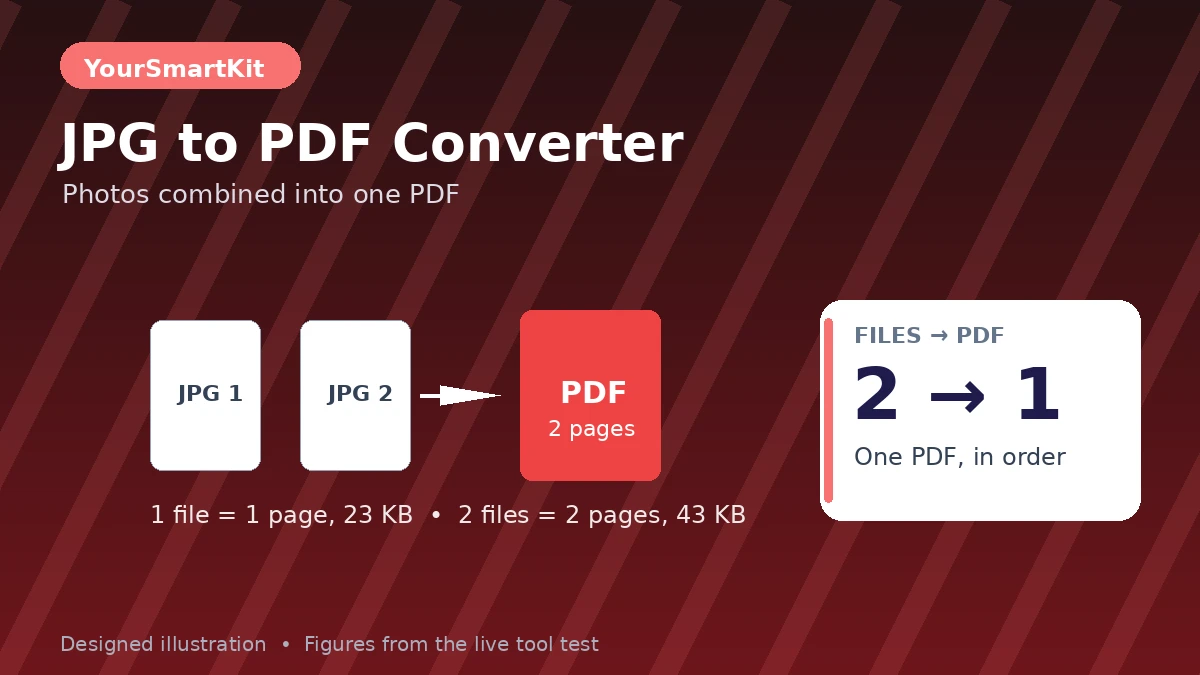
What was verified, and what was not
Two real conversions were run on 1 November 2026 with simple synthetic test pages, to test mechanics only, not photo quality. With one test JPG, the tool showed “Done. 1 image(s) in your PDF.” and the download was 23 KB. With two test JPGs chosen together, the tool showed “Done. 2 image(s) in your PDF.” and the download was 43 KB. In both cases the download is named images.pdf. Each image is placed on its own A4 portrait page, scaled to fit while keeping its shape, so the one-file PDF has 1 page and the two-file PDF has 2 pages, in the order the files were chosen. No file-size or page-count cap is stated in the tool, so none is quoted here.
Which PDF tool fits your file?
| Your file | Use this tool | Why |
|---|---|---|
| JPG photos or scans | This JPG to PDF converter | Each JPG gets its own A4 portrait page in one PDF. |
| A broader mix of images, including PNG or WebP | Image to PDF Converter | It accepts PNG, JPG, and WebP images, with each image becoming one page in a single PDF. |
| Typed text you want as a PDF | Text to PDF Converter | Type or paste text and get a PDF with real text, rather than a picture of text. |
| A ZIP archive of images or text | ZIP to PDF Converter | It reads a ZIP containing images (JPG, PNG, WebP, BMP, GIF) and plain text, up to 25 MB and at most 100 convertible files, in file-name order, into one PDF. |
| An image that is not a JPG yet | Convert Image to JPG | Convert first, then combine: it converts a PNG, WebP or other image to JPG in the browser, one image at a time. |
| An image that is too large for a form | Image Compressor to 200KB or Compress Image to 100KB | Compress to a 200 KB or 100 KB target first, then convert the smaller file. |
File size, forms, and scanned text
This tool does not compress your images, so the PDF size depends on the JPGs you choose. If a form has a size limit, compress the images first with one of the compressor tools above, then convert. A scan is a picture of text, not searchable text, and this tool does not add OCR, so the PDF will not let you search or copy the scanned words. For text you can search and copy, type or paste it into the Text to PDF Converter instead.
Tips and common mistakes
- Select the files in page order. There is no reorder step, so a file chosen out of order stays out of order in the PDF.
- Check the file type before you start. This tool is for JPG images; for PNG or WebP, use the Image to PDF Converter.
- Do not expect rotation or cropping here. Rotate or crop the image before you convert it.
- If nothing happens, check that at least one JPG is chosen and that the PDF library has loaded; the tool reports a plain message in both cases.
Limits you should know
- No page reorder, no rotation, no cropping, no compression, and no OCR.
- Each image gets its own A4 portrait page, scaled to fit while keeping its shape.
- No stated file-size or page-count cap was found in the tool, so none is quoted here.
Privacy note
The tool reads your files in the browser and builds the PDF there, with no upload call for the images themselves. The page does load its PDF library from a content delivery network, so this page does not claim to make no network request at all. If you have a question about this page, use the contact page.
Related tools
Try the Image to PDF Converter for PNG, JPG, and WebP images, the Text to PDF Converter for typed text, the ZIP to PDF Converter for a ZIP archive, Convert Image to JPG to convert first and then combine, and the Image Compressor to 200KB and Compress Image to 100KB tools to shrink an image first. See all of them on the converters hub.
Frequently asked questions
Can I combine multiple JPGs into one PDF?
Yes. Select multiple files at once, in page order, and they will all be included in one PDF, with each image on its own A4 portrait page. A two-file test on 1 November 2026 gave “Done. 2 image(s) in your PDF.” and a 43 KB download named images.pdf.
What happens if I press Create PDF with no file chosen?
The tool shows: “Please choose at least one JPG image.” Choose at least one JPG and try again.
Are my images uploaded to a server?
No upload call is made for the images themselves; the PDF is built in your browser. The page does load its PDF library from a content delivery network, so this page does not claim to make no network request at all.
What this tool does, and what it does not do
Use this table to check the tool against the job before you start.
| Feature | This tool |
|---|---|
| Output | One combined PDF from all the JPGs you choose |
| Page size | A4 portrait, with no page-size choice |
| Pages | One image per page, in the order you chose the files |
| Reorder | No reorder step |
| Quality setting | No quality slider |
| Compression | No compression |
| Text recognition | No OCR, so scanned text stays a picture of text |
| Separate PDFs | No option to download one PDF per image |
| Download name | Always named images.pdf; rename the file after download if you are sending it to someone else |
How to read the result
When the tool finishes, it shows a labelled result box that reads “Your PDF is ready” with “Done” and the number of images in your PDF, followed by a Download PDF link. For example, two images give “Done. 2 image(s) in your PDF.”
Good uses for this tool
- Receipts or photos that need to go as one shareable file: choose them in order and send the single PDF.
- Scanned pages for a form: choose the pages in order, then check the PDF before you send it. If the file is too large for the form, compress the images first with the Image Compressor to 200KB or Compress Image to 100KB tools, then convert the smaller files.