
ZIP to PDF Converter
ZIP to PDF Converter
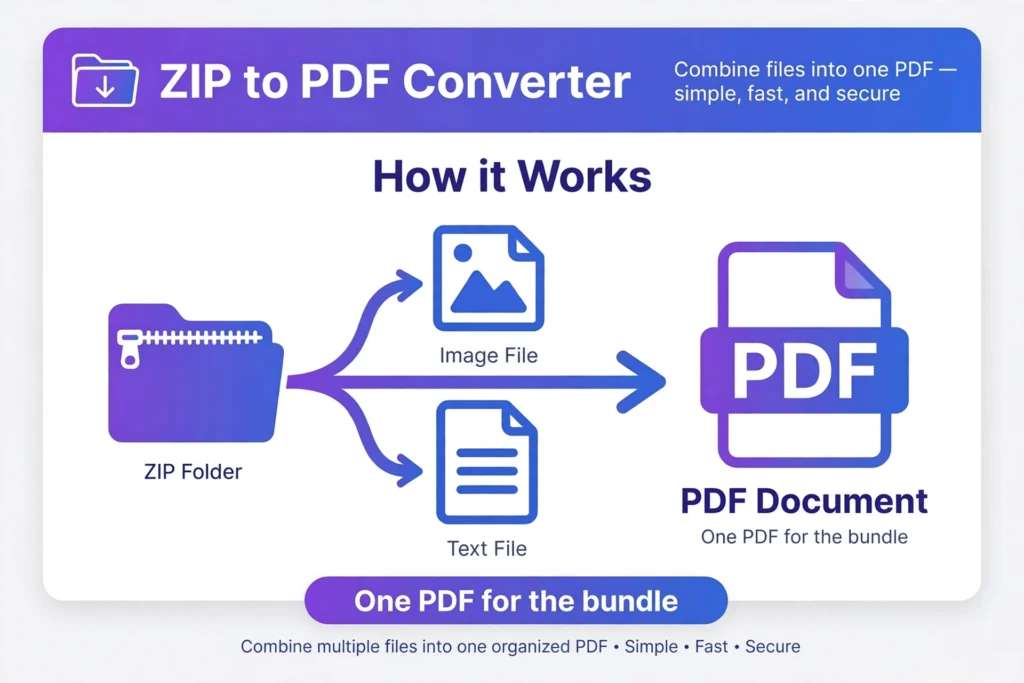
Turn a whole ZIP of pictures and notes into a single PDF. Choose the .zip file and this page builds the PDF in your browser: every image inside becomes a page, and every plain text file becomes a page of text, in file-name order. Nothing is uploaded to a server.
Scope, stated plainly: this tool reads a ZIP containing images (JPG, PNG, WebP, BMP, GIF) and plain text files (.txt, .md). Each image becomes one PDF page, fitted to an A4 page; each text file becomes one or more pages of plain text in a standard font — the text is laid out fresh, not a picture of the file. Anything else inside the ZIP (documents, spreadsheets, audio) is listed and skipped, not converted. Caps: the ZIP must be 25 MB or smaller and hold at most 100 convertible files.
In the retest, zip-test-two-files.zip gave a 2-page PDF: 1 image page and 1 text page, downloadable as zip-test-two-files.pdf (23.29 KB).
A ZIP is a folder in an envelope; a PDF is a document. When a bundle of scans, photos and notes needs to become one file you can send, print or archive, a zip to pdf converter does the assembly: it opens the archive and builds a single PDF in which every image becomes a page and every plain text file becomes pages of text, in file-name order. That is what the converter at the top of this page does, entirely in your browser — no uploads, no server, no account. Choose the ZIP, press the button, and download one PDF that holds the bundle together.
The build test is exact, because a merged document is only trustworthy if its contents can be audited. The test archive weighs 3,532,774 bytes and holds two files: photo.jpg, a photograph of 2400 by 1600 pixels, and letter.txt, a short customer letter whose lines include “Your order 12345 has shipped.” and “It arrives on Friday.” The converter produced a PDF of 3,547,602 bytes with exactly 2 pages — page 1 the letter, page 2 the photograph, because entries are processed in file-name order and letter.txt sorts before photo.jpg. Verification was independent of the tool itself: the PDF’s page structure was counted (2 pages, no more), the letter’s text was extracted from the first page letter for letter, and the photograph was confirmed present on the second page as an embedded image. Two files in, two pages out, both accounted for.
How the Pages Are Built
Each kind of content gets the page it deserves. An image becomes a full PDF page of its own: JPG and PNG images are embedded directly from the archive, while WebP, BMP and GIF images are first re-encoded as JPG images (over a white background, since a page has no transparency) and then placed. Every image is scaled to fit an A4 page — scaled proportionally, centred, never stretched or cropped. The test photograph makes the arithmetic concrete: at 2400 by 1600 pixels, it is limited by the page’s width, so it lands at 210 millimetres wide and 140 millimetres tall, centred vertically on the A4 page. A tall image, limited by height instead, fills the page top to bottom and centres horizontally.
A text file becomes flowing text: the file’s content is wrapped to the page width in a standard font and set as real, selectable PDF text — not a picture of text — running onto further pages if the file is long. The letter in the test fits on one page, so the archive’s two files made a two-page document; a long log file or a set of meeting notes would simply take the pages it needs. Entries are processed in file-name order, so naming files 01, 02, 03 before zipping is the reliable way to art-direct the page order. Anything in the archive that is neither an image nor a plain text file — a spreadsheet, a Word document, an audio clip — is named in the results as skipped. It is not converted into a pretend page, because a PDF page that misrepresents its source is worse than an honest omission.
Under the hood this is deliberately ordinary technology: the same browser PDF engine this site uses for its JPG to PDF and Text to PDF converters, and a ZIP reader running locally on your device. Ordinary is a compliment for a converter — the formats are documented, the behaviour is predictable, and the output opens in every PDF reader ever made.
How to Use the Converter
Using the tool takes a few seconds. Follow these steps:
- Click the file box and choose the .zip file from your device (up to 25 MB, holding at most 100 convertible files).
- Press “Create PDF”.
- Read the result lines: they report the total page count, how many pages came from images and how many from text files, and anything skipped.
- Click the download button to save the PDF — it takes your archive’s name with the ending changed, so scans.zip becomes scans.pdf.
If page order matters, rename the files inside the archive before converting: the converter works in file-name order, and prefixes like 01-, 02-, 03- make the order you intend the order you get. A file that is not a ZIP, an archive over 25 MB or over 100 convertible files, and a damaged or password-protected ZIP are each refused with a clear message. An individual image that cannot be decoded is named in the results and left out, while the rest of the archive still becomes a PDF.
Worked Examples
Example 1: The build test — a photo and a letter
The archive from the introduction is the tool’s own build verification, run on the exact code this page ships: photo.jpg (2400 by 1600) and letter.txt, a five-paragraph customer letter, inside a 3,532,774-byte ZIP. The output PDF weighs 3,547,602 bytes — slightly more than the archive, because ZIP squeezes the photograph harder than the PDF bothers to — and holds exactly 2 pages. Page 1 carries the letter as genuine text: a PDF reader extracted “Your order 12345 has shipped.” from it intact, which proves the text is stored as text, searchable and selectable, not baked into an image. Page 2 carries the photograph embedded as a real image object, fitted to the A4 width at 210 by 140 millimetres. Two files in, two pages out, image and text each in their proper form.
Example 2: A set of scanned pages
Imagine six JPG scans of a signed agreement, named scan-1.jpg through scan-6.jpg, zipped by the scanner’s software along with a readme in another format. The converter builds a six-page PDF in name order — the agreement, page after page, each scan fitted to A4 — and lists the readme as skipped. The result is the file you can actually send to the other party: one PDF, pages in order, instead of an archive the recipient must unpack and reassemble by hand. If a seventh scan arrives later, the honest workflow is to add it to the folder, re-zip, and convert again — the tool rebuilds the whole document each time rather than appending blindly.
Example 3: Field notes with photographs
A site engineer zips three phone photos and a notes.txt from a visit. Page order follows the file names — camera names like IMG_2041.jpg sort before notes.txt — so the photos become the first pages, each fitted to the page, and the notes become text pages after them: a compact visit record in a single file. Because the notes are real text, the PDF can be searched for a part number or a date months later. Had the notes been a Word document instead of a text file, the tool would have listed it as skipped rather than guessing at it — documents want the ZIP to Word converter, which delivers them in their own format.
How to Read the Output
The result line names the finished PDF and its size, repeated on the download button so a completed download can be checked against it. The detail line is the manifest: total pages, image pages, text files converted, and then the two honest lists — files skipped because they are neither image nor text, and files that could not be converted because they would not decode. The page count is the number to check against your expectation: it equals the number of images plus the number of pages your text files needed. If the count is lower than expected, a skipped or failed file in the detail line will say which one and why; if it is higher, one of the text files ran long and flowed onto extra pages, which the per-file flow makes inevitable and correct.
Where ZIP to PDF Conversion Is Used
The pattern repeats wherever a bundle must become a document. Scanned paperwork — agreements, receipts, application forms — arrives as archives of images and is filed as single PDFs. Sellers assemble product photos and a specification note into one catalogue file. Students submit a ZIP’s worth of worksheet photos and written answers as one assignment document. Teams archive a project’s screenshots and notes together, in a format that will open identically in twenty years. In each case the value is the same trio: one file instead of many, an order the sender controls, and contents that keep their nature — images as images, text as searchable text — inside a container every device can read.
Common Mistakes
The first common mistake is expecting every file in the ZIP to become a page. This converter is explicit about its scope: images and plain text convert; Word documents, spreadsheets and everything else are listed as skipped, in this tool and in every honest one. The second is ignoring file names until after conversion — page order is file-name order, so a bundle named by camera defaults (IMG_2041 before IMG_1930) makes a document in camera order; renaming with number prefixes before zipping takes a minute and saves the confusion. The third is treating the PDF as a container for the originals: the images inside are fitted representations for reading and printing, and the photograph’s bytes are embedded for display — keep the ZIP itself when you need the untouched originals, which the ZIP to JPG converter extracts as JPGs. The fourth is zipping a folder inside a folder and wondering at extra skips; nested archives are not opened recursively. The fifth is feeding a password-protected ZIP: browser tools cannot open encrypted archives, so extract it with your archive app first.
Limits: What This Tool Does and Does Not Do
This tool opens one ZIP archive of up to 25 MB holding at most 100 convertible files, and builds one PDF: each JPG, PNG, WebP, BMP or GIF image becomes one A4 page, fitted proportionally and centred; each .txt or .md file becomes pages of wrapped, selectable text in a standard font, in file-name order throughout. It does not convert Word documents, spreadsheets, presentations or existing PDFs found inside the archive; it does not OCR images of text into text (an image page stays an image page); it adds no cover page, page numbers or table of contents; and it does not preserve the archive’s folder structure beyond file-name ordering. Within its scope, the build test verified the output independently: exactly 2 pages from 2 files, the image present as an embedded object, and the letter’s text present as text.
Privacy: Your Files Stay in Your Browser
Bundles that get zipped and sent are so often the private kind — signed forms, family photographs, work records. Every archive you convert with this tool stays on your device: the ZIP is opened locally, the PDF is assembled locally, and nothing is uploaded, stored or shared, and there is no account to create. Closing the page removes your data from the tool. A conversion that never moves your files cannot leak them — the same browser-only principle behind the other free tools on Your Smart Kit.
What file types does the converter handle, and what does it skip?
Images become A4 pages and text files become selectable text pages, in file-name order. Other files are listed and skipped. The limit is 25 MB and 100 convertible files, and there is no cover page, page numbers, or contents page.
| File type | Result | Notes |
| JPG, PNG, WebP, BMP, GIF | A4 page each | Does convert |
| txt, md | Selectable text page | In file-name order |
| Other files | Listed and skipped | Does not convert |
| Limits | 25 MB, 100 files | No cover pages or contents |
Frequently Asked Questions
Is the text in the PDF real text, or pictures of text?
Real text, for text files. A .txt or .md file’s content is typeset as selectable, searchable PDF text — the build test found the letter’s sentence “Your order 12345 has shipped.” stored as text in its page. Images, by contrast, stay images: a photograph of a page is not OCR’d into text.
How is the page order decided?
By file name, in order. The converter processes the archive’s entries sorted by name, so naming files 01, 02, 03 before zipping gives you the page order you intend. In the build test, letter.txt sorted before photo.jpg, and the PDF’s pages followed: letter first, photograph second.
What happens to Word documents or spreadsheets inside the ZIP?
They are listed by name as skipped, and left out of the PDF. This tool converts images and plain text. The ZIP to Word converter delivers Word documents from an archive unchanged, in their own format.
How big can the archive be?
Up to 25 MB, with at most 100 convertible files inside. Very large photographs still convert, but a bigger bundle should be split into a few archives and converted in parts.
Will my images be reduced in quality?
JPG and PNG images are embedded from the archive as they are and scaled to fit the page for display; WebP, BMP and GIF images are re-encoded as JPG at high quality on their way in. The PDF is a reading and printing document — keep the original archive when you need the untouched image files themselves.
Is my archive uploaded to a server?
No. The ZIP is opened and the PDF is built entirely in your browser, on your own device. Nothing is sent anywhere, and closing the page clears the tool.
Related Tools on Your Smart Kit
If this converter was useful, its neighbours cover the other directions between archives and documents. The ZIP to JPG converter extracts a ZIP of images as JPGs, passing existing JPGs through untouched, and the ZIP to Word converter delivers the Word documents inside an archive byte for byte. For unzipped sources, the JPG to PDF and Image to PDF converters build PDFs from images directly, and the Text to PDF converter typesets text into a document. Each runs in your browser, free, with no sign-up — one job, done properly, with your files kept private. Try the converter at the top of this page on the bundle you were about to email as a ZIP, and send one tidy PDF instead.